


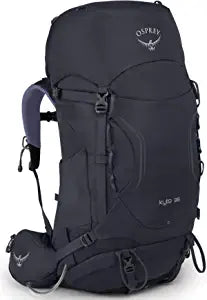
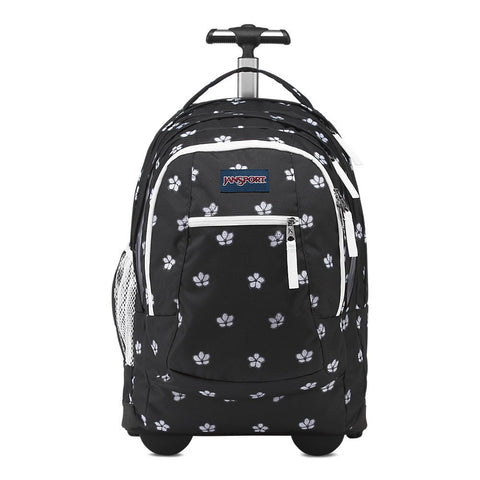



Computer Backpacks
Computer backpacks protect laptops while organizing chargers, tablets, documents, bottles, and daily supplies for work, school, commuting, and travel. The best choice starts with the computer's exact outer dimensions and the complete load, not only a screen-size label or advertised capacity.
Measure the Computer Before Shopping
Measure the closed laptop's width, height, and maximum thickness with any shell that will remain attached. Compare those figures with the usable internal dimensions of the laptop compartment. A 15.6-inch or 17-inch label describes the display diagonal and does not guarantee identical chassis dimensions.
Allow modest clearance so the device slides in without forcing the zipper, yet avoid a sleeve so loose that the laptop moves excessively. A retaining strap can help, but it should not press hard against the display lid.
As an Amazon Associate, we may earn from qualifying purchases.
Prioritize Laptop Protection
Look for padding across both broad faces, protection along the sides, and a buffer beneath the computer. A suspended sleeve ends above the backpack floor and can reduce direct impact when the bag is set down. If the sleeve reaches the base, substantial bottom and corner padding becomes especially important.
Keep power adapters, keys, pens, tools, and other hard objects in separate pockets. Liquids should remain outside the electronics compartment whenever possible. A secondary padded sleeve adds protection when rain, crowded transit, or frequent loading increases risk.
Choose Capacity From a Real Packing List
Lay out the laptop, charger, mouse, headphones, documents, bottle, lunch, clothing layer, and other daily items. Choose the smallest backpack that holds this load without compressing the laptop or forcing closures. Excess space adds bulk and can allow contents to shift.
Liter ratings help compare general volume, but compartment shape and pocket placement determine usable space. A slim 20-liter model may suit a short commute, while a larger bag is useful for textbooks or overnight travel. Estimate the final carried weight before selecting extra capacity.
Comfort Under Load
Wide, shaped shoulder straps distribute weight better than narrow webbing. A supportive back panel prevents chargers and books from pressing into the body. Adjustable straps should position the backpack close to the back, and a sternum strap can stabilize heavier loads during longer walks.
Test the loaded bag indoors. Walk, climb stairs, sit, turn, and use the grab handle. Check pressure points, strap slippage, balance, zipper access, and whether the laptop shifts when the bag is placed down.
Organization for Chargers and Accessories
Useful layouts give the laptop, charger, cables, documents, small accessories, and bottle clear locations. Too many tiny pockets can waste space, while one undivided cavity lets hard objects contact the computer. Choose organization that matches the items carried every day.
A USB pass-through is normally cable routing, not a power source. It requires a compatible power bank purchased separately. Follow battery instructions and current transportation rules, and remove the bank before washing the backpack.
Weather Resistance and Security
Water-resistant fabric can help during brief light rain, but seams and zippers may remain entry points. Waterproof claims should be checked for the exact product and conditions. For valuable electronics, a compatible sleeve or rain cover adds protection during extended exposure.
Hidden pockets, inward-facing zippers, lock-compatible pulls, and cut-resistant materials can discourage opportunistic access, but no backpack makes valuables invulnerable. Keep the bag controlled in crowded places and maintain device backups and tracking protections.
Computer Backpack Buying Guides
Use these 15 detailed guides to compare fit, protection, work, school, travel, security, weather resistance, packing, and care:
- How to Choose Computer Backpacks: Complete Buying Guide.
- What Fits in Computer Backpacks? A Practical Packing Guide.
- Computer Backpacks vs Briefcases, Messengers and Laptop Bags.
- How to Measure a Laptop for a Backpack: Complete Size Guide.
- Best Computer Backpack Features for Work, School and Travel.
- Computer Backpacks for Work: Professional Buying Guide.
- Computer Backpacks for College: Laptop, Books and Daily Gear.
- Computer Backpacks for Travel: Carry-On and Personal-Item Guide.
- 17-Inch Computer Backpacks: Fit, Protection and Capacity Guide.
- Waterproof Computer Backpacks: Rain Protection Explained.
- Computer Backpacks With USB Ports: What the Feature Really Does.
- Anti-Theft Computer Backpacks: Security Features That Matter.
- Slim Computer Backpacks: Minimal Carry Without Sacrificing Protection.
- How to Pack a Computer Backpack Without Damaging Your Laptop.
- How to Clean a Computer Backpack and Protect Its Padding.
Test the Final Candidates
Load each finalist with the same computer and daily items. Confirm that the laptop enters and exits smoothly, the base protects it when the backpack is set down, and the charger cannot press against the lid. Walk the same route and note balance, shoulder pressure, ventilation, and access.
Inspect materials, stitching, strap anchors, zipper paths, lining, and the exact care label. Confirm the chosen size and color variant because dimensions and features can differ across listings. Keep packaging until the indoor fit test is complete.
Care, Inspection and Long-Term Use
Remove the laptop, power bank, cables, and every loose accessory before cleaning. Follow the sewn-in care label because coatings, foam, leather trim, and structured panels can react differently to water, heat, or detergent. Spot cleaning with a soft cloth is often safer than machine washing unless the manufacturer explicitly permits a machine cycle.
Air-dry the backpack completely with compartments open and away from direct high heat. Before reloading the computer, inspect the sleeve lining, bottom padding, zipper teeth, seams, strap anchors, and any cable pass-through. Retire or repair a bag when damaged structure can no longer keep the device stable.
Recheck the packing system when the laptop, charger, commute, or travel routine changes. A backpack that fit an older thin device may crowd a new computer in a hard shell, and added accessories can alter balance. Periodic loaded tests keep protection and comfort aligned with the current equipment.
Final Buying Checklist
- Measure width, height, and thickness.
- Confirm usable sleeve dimensions.
- Check bottom and corner protection.
- Build a complete packing list.
- Separate liquids and hard accessories.
- Estimate the fully loaded weight.
- Test straps, balance, and access.
- Verify weather and security claims.
A useful computer backpack fits the actual device, protects it from ordinary handling, organizes the complete load, and remains comfortable through the real commute or trip. Choose from measured needs instead of relying on a category label alone.


